3 Efficient Block Counting Workflows in DWGSeeCAD – Speed Up Your Quantity Takeoff
For architects, MEP engineers and drafters, counting blocks, fixtures and symbols on DWG drawings is a repetitive, time-consuming task. Manual counting easily leads to omissions and errors, delaying material takeoff, quotation and construction preparation. DWGSeeCAD integrates three practical block counting tools to match different daily drawing scenarios, helping you get accurate block quantities in seconds.
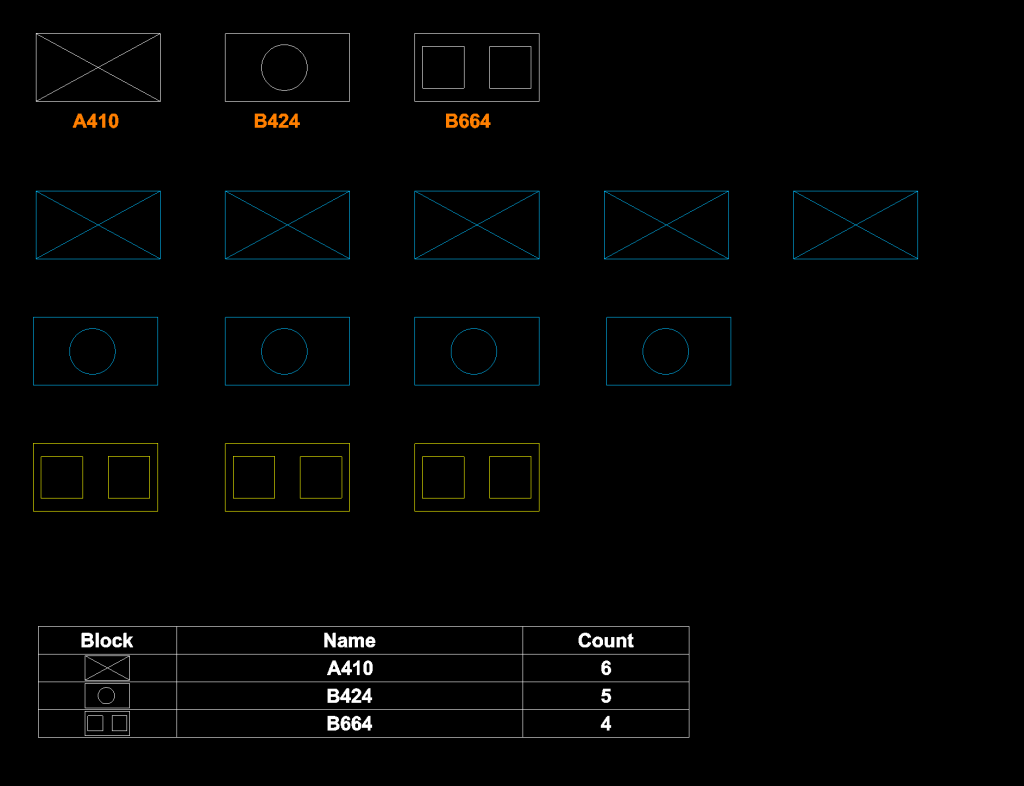
1. Block Statistics: Generate a full block schedule and insert it directly into the drawing
When you need a complete inventory of every block inside the whole drawing, use Tools > Block Statistics. This function automatically scans all block references, compiles all block names and their quantities into a clear table, and lets you insert this statistics table straight onto your DWG. It is ideal for full drawing quantity summary, tender documentation and drawing handover, so your team can view the block list without extra exported files.
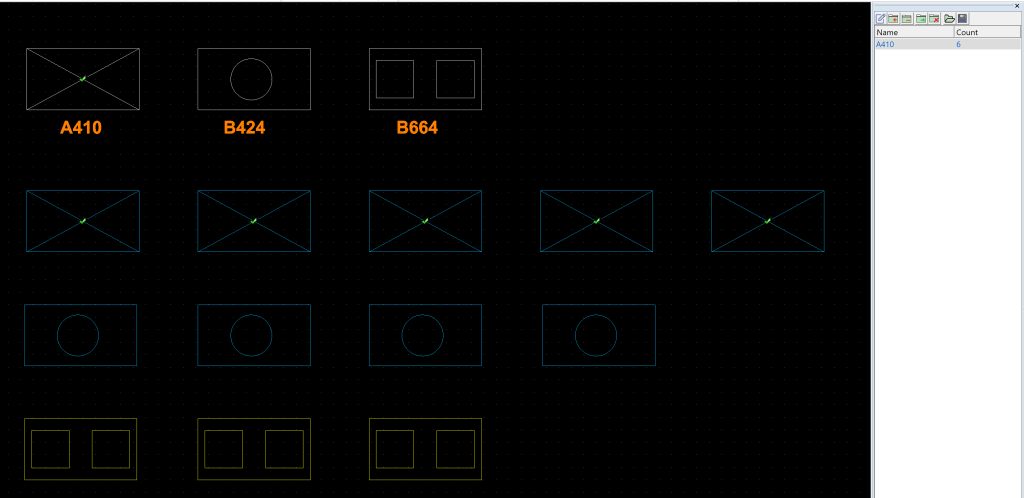
2. Count Button: Custom count groups and auto-match blocks by name
Use the Count button when you only want to track selected types of blocks instead of everything. First define your count object group, then tick target items. DWGSeeCAD will automatically locate and count all instances sharing the same block name. This workflow fits selective checking, such as counting only door blocks, sanitary ware or equipment symbols for partial takeoff. You can manage multiple count groups separately and verify results visually on the canvas.
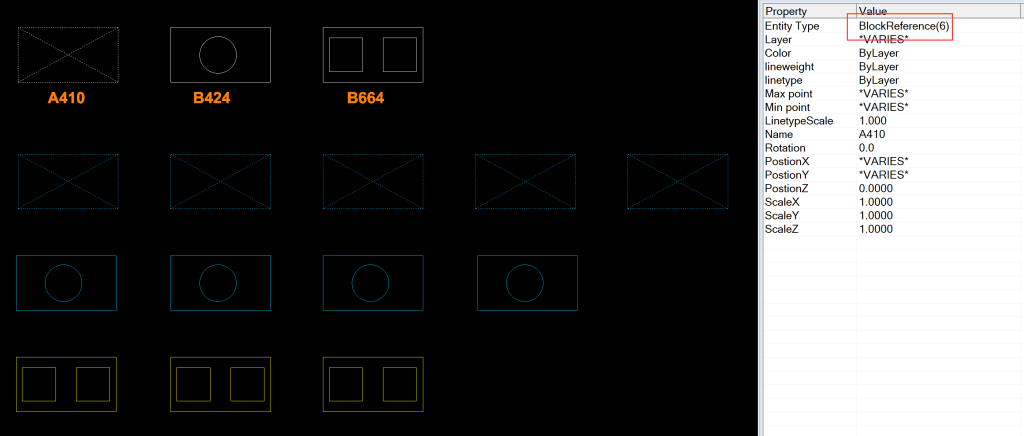
3. Right‑Click Select Similar: Instant quantity preview in the property panel
For quick spot checks, select one block, right‑click and run Select Similar. All matching blocks will be selected at once, and the total quantity is displayed directly in the right‑side property panel. This is the fastest method for ad‑hoc verification: while reviewing drawings, you can click any fixture or component and immediately know how many identical blocks exist, perfect for on‑the‑fly checks and quick cross‑validation.
Whether you need a formal block report, selective quantity counting or fast spot checks, DWGSeeCAD covers these common takeoff needs with flexible counting modes. Reduce manual counting mistakes, cut down drawing review time, and make your DWG quantity work simpler and more reliable.