MLSTYLE (Command) #
Creates, modifies, and manages multiline styles.
Summary #
Displays the Multiline Style dialog box.
A multiline style controls the number of elements (parallel lines) in a multiline and the properties of each element, including offset, color, and linetype. It also controls background fill and end caps. Multiline objects can contain 1 to 16 parallel elements.
Multiline Style Dialog Box #
Creates, modifies, saves, and loads multiline styles.
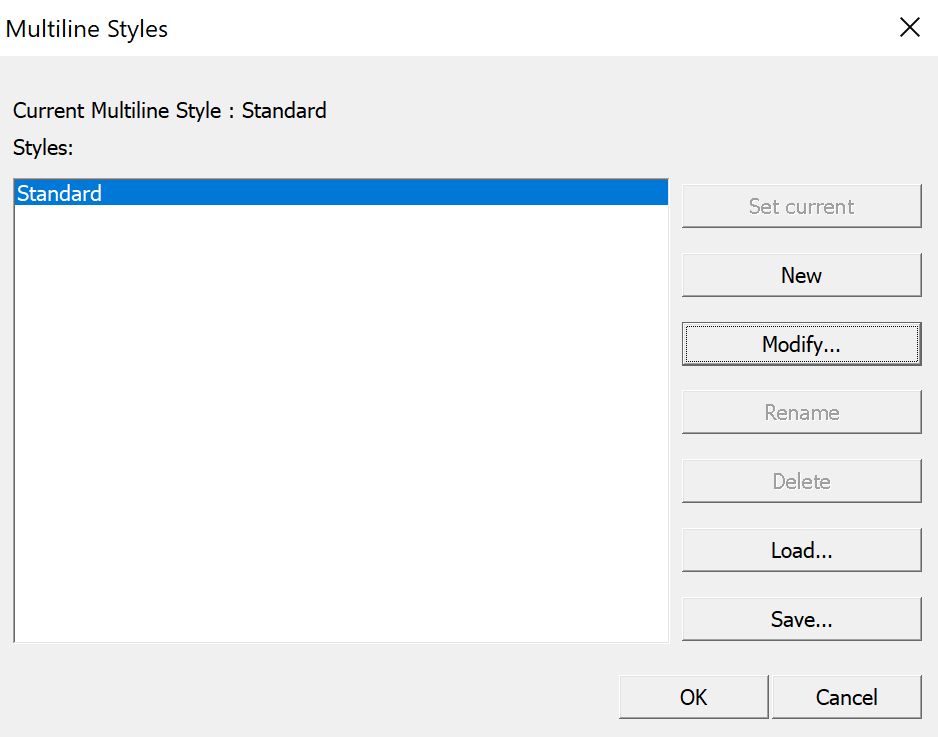
- Current Multiline Style: Displays the name of the current multiline style used for subsequently created multilines.
- Styles: Lists all multiline styles loaded in the drawing.
- Set Current: Sets the selected style as the current style for newly created multilines.
- New: Opens the Create New Multiline Style dialog box to define a new style based on an existing one.
- Modify: Opens the Modify Multiline Style dialog box to edit the properties of the selected style.
- Rename: Renames the selected style. The default STANDARD style cannot be renamed.
- Delete: Removes the selected style from the drawing. The STANDARD style, the current style, or a style currently in use cannot be deleted.
- Load: Loads multiline styles from an external multiline library (.mln) file.
- Save: Saves the selected style to a .mln file for reuse in other drawings.
Note: You cannot edit the element and multiline properties of a style that is already being used in the drawing. Modify it before drawing any multilines that reference the style.
New / Modify Multiline Style Dialog Box #
Sets the properties and elements for a new style, or changes them for an existing style.
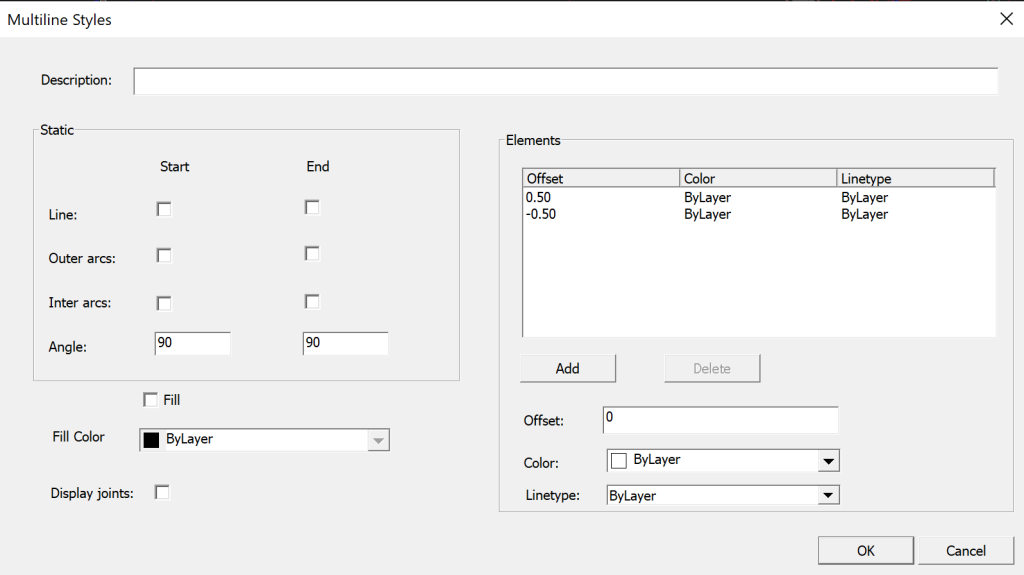
- Description: Adds an optional description (up to 255 characters, including spaces) to the style.
Caps
- Controls the start and end caps of the multiline.
- Line: Draws a straight line across each end of the multiline.
- Outer Arc: Draws an arc connecting the outermost elements at each end.
- Inner Arcs: Draws arcs between pairs of inner elements. If there is an odd number of elements, the center element is left unconnected.
- Angle: Specifies the angle of the start and end caps independently.
Fill
- Controls the background fill of the multiline.
- Fill On: Enables background fill.
- Fill Color: Sets the fill color. Choosing Select Color opens the color selection dialog box.
- Display Joints: Controls whether miter lines (joints) are displayed at each vertex of the multiline.
Elements
- Sets the properties of individual line elements.
- Elements list: Displays all elements in descending order of offset, along with their color and linetype.
- Add: Adds a new element to the style.
- Delete: Removes the selected element from the style.
- Offset: Specifies the distance of the element from the center line of the multiline.
- Color: Sets the color of the selected element.
- Linetype: Sets the linetype of the selected element.
Typical Use Cases #
- Wall representation: Define a multiline style with two offset elements to draw walls of a specified thickness in one operation.
- Pipe or conduit layouts: Create styles with different colors and linetypes to distinguish water, electrical, or HVAC lines.
- Road or railway plans: Use filled multilines with end caps to represent road beds or track sections.


