Skip to content

DWGSee CAD Support

  • Home
  • Download
  • Articles
  • User Guide
  • Contact
DWGSee CAD Support

What's New

7
  • New Features in DWGSee CAD 2027
    • Aligh entities
    • Extract Dimension
    • SCRIPT
    • UNION(Command)
    • SUBTRACT (Command)
    • MASSPROP
    • Rename

Get Started

4
  • Command Line List
  • Main Features
  • System Requirements
  • Welcome to DWGSee CAD

Have You Tried?

6
  • How to Extract Dimensions from Engineering Drawings
  • How to isolate objects
  • How to use Design Center in DWGSee CAD
  • How to merge lines/arcs to one ployline
  • How to Draw Arrows in DWGSee CAD
  • How to Select Objects Based on Shared Properties?

User Guide

117
  • User Interface
    • GRID
  • Manage Drawing Files
    • Ucsicon
    • ISOLATEOBJECTS (Command)
    • UNISOLATEOBJECTS (Command)
    • HIDEOBJECTS (Command)
    • Units
    • Create a new drawing
  • Create Objects
    • BLEND
    • Hatch
    • Ellipse
    • Circle
    • Multiline
    • Spline
    • Point
    • XLINE
    • UNION(Command)
    • SUBTRACT (Command)
    • INTERSECT(Command)
    • Arc
    • Rectangle
    • Polygon
    • Polyline
    • Line
    • Create Text
      • TEXTABOVELINE
      • ARCTEXT
      • STYLE
    • Create Curved and Closed Geometry
      • SOLID
      • About Donuts
        • Donut
      • About Regions
        • Region
    • Create Linear and Reference Geometry
      • ExLine
      • MLSTYLE
      • TangentLine
  • Reference External Files and Data
    • ADCENTER
    • InsFromDWG
    • INSBLKDESIGNBIND
    • DWFATTACH
  • Defining Blocks
    • STATBLK
    • WBLOCK
    • About Purging Unreferenced Layers, Blocks, and Style Definitions
      • PURGE
  • Modify Objects
    • DIMSYMDRIVER
    • SHAFTUNDERCUT
    • HOLEUNDERCUT
    • HOLECHAMFER
    • SHAFTCHAMFER
    • BLKREPLACE
    • TXTEXP
    • IMAGECLIP
    • VPCLIP
    • LINESTOPL
    • DCANGULAR
    • DIMALIGN
    • DIMOBLIQUE
    • DIMDRIVER
    • CHAMFER
    • EXTEND
    • TRIM
    • Pedit
    • Mledit
    • Fillet
    • Copy
    • Scale
    • Array
    • Mirror
    • PURGE
    • Duplicate and Array Objects
      • Patharray
      • Offset
      • About Copying Objects
        • NCOPY(Command)
    • Remove Objects and Object Segments
      • Erase
      • Break
      • Join
      • About Correcting Mistakes
        • Overkill
        • OOPS
    • Change General Object Properties
      • SELECTSIMILAR
      • CANNOSCALE
      • Draw order
      • Linetype
      • Layer
      • How to Change the Color of Selected Objects?
      • LIST
      • About Object Properties
        • MATCHPROP
    • Editing Complex Objects
      • XCLIP
      • DDPTYPE
      • EDITTOL
      • EXPLODE
    • Change the Size and Length of Objects
      • Lengthen
      • EXTEND
      • TRIM
    • Move and Rotate Objects
      • Aligh entities
      • Align
      • Rotate
      • Stretch
      • Move
  • Control Drawing Views
    • REGEN
    • ZOOM
    • PAN
  • Control Precision with Drafting Aids
    • SNAP
    • LIMITS (Command)
  • Add Hatches, Fills, Tables, and Revision Clouds
    • GRADIENT
    • Wipeout
  • Create Notes, Labels, and Leaders
    • TEXTALIGN
    • Extract Dimension
    • ANNOALLVISIBLE (System Variable)
  • Dimension Objects
    • DIMCHAMFER
    • SCALEPART
    • REVC
    • DIMSTYLE
    • DIMCONTINUE
    • DIMJOGGED
    • NUMBER
    • DIMALIGNED
    • DIMBASELINE
    • TOLERANCE
    • CenterLine
  • Tools
    • STATBLK
    • STATTBLK
    • Extract table
    • PLDATA

License

1
  • End-User License Agreement
View Categories
  • DWGSee CAD
  • Support
  • User Guide
  • Modify Objects
  • SHAFTUNDERCUT

SHAFTUNDERCUT

0:00 / 1:44

SHAFTUNDERCUT #

Overview #

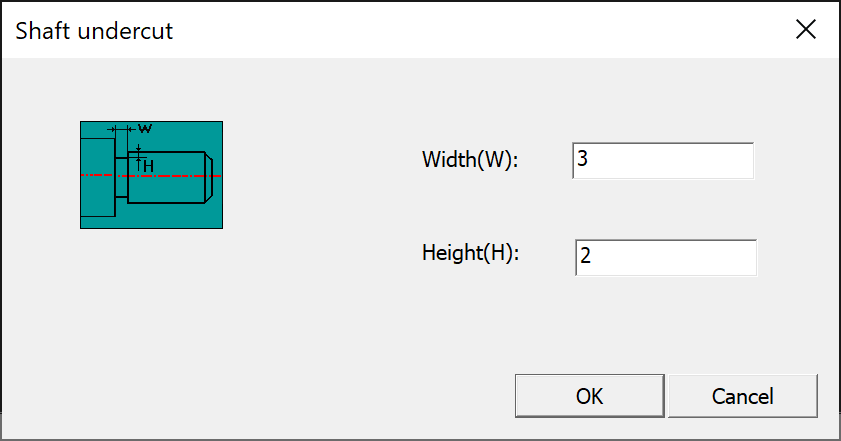
The SHAFTUNDERCUT command in DWGSeeCAD creates external undercut relief groove geometry for shaft parts. A dedicated Shaft undercut dialog box is provided, with a preview schematic for setting groove Width(W) and Height(H). It is a DWGSeeCAD exclusive extended command for turning relief grooves on external rotary shafts.
Command Prompt Workflow #

  1. Enter SHAFTUNDERCUT on the command line and press Enter.
  2. Prompt: [Shaft undercut ] Select shaft chamfering end face: Pick the shaft end face to place the undercut groove.
  3. Prompt: [Shaft undercut ] Select an outline of the turning surface: Select one outer profile line of the rotary shaft surface.
  4. Prompt: [Shaft undercut ] Select another outline of the turning surface: Select the opposite outer profile line of the rotary shaft surface.
  5. The Shaft undercut dialog opens:
    • Width(W): Input the axial width of the shaft undercut relief groove.
    • Height(H): Input the radial depth of the shaft undercut relief groove.
  6. Click OK to generate the undercut geometry; click Cancel to abandon the operation.

Dialog Options #

  • Width(W): Axial width of the external shaft undercut groove.
  • Height(H): Radial depth of the undercut groove, measured from the shaft outer surface inward.
  • OK / Cancel: Confirm and create the shaft undercut, or close the dialog without saving changes.

Usage Notes #

  • SHAFTUNDERCUT generates external relief undercut grooves for shafts, which is different from HOLEUNDERCUT used for internal hole undercuts and SHAFTCHAMFER used for shaft chamfers.
  • It requires selecting the shaft end face plus two opposite turning outlines to identify the rotary shaft geometry.
  • Width and height parameters follow standard machining undercut groove specifications for external shafts.
  • This is a custom DWGSeeCAD extended command and is not built into native AutoCAD.

Application Scenarios #

Use SHAFTUNDERCUT for thread relief grooves, grinding escape grooves and tool undercuts on stepped shafts, pin shafts and other turned rotary parts. It quickly generates accurate undercut geometry for mechanical manufacturing drawings.

Share This Article :

  • Facebook
  • X
  • LinkedIn
  • Pinterest
Table of Contents
  • SHAFTUNDERCUT
    • Overview
    • Command Prompt Workflow
    • Dialog Options
    • Usage Notes
    • Application Scenarios

© 2026 DWGSee CAD Support

  • Home
  • Download
  • Articles
  • User Guide
  • Contact